Ethernet Network Troubleshooting v3.0.1


|
What type of issue is the customer experiencing? |
|
Unable to Connect to Network |
|
Connected to Network but experiencing Poor Performace (Download Not Available, Buffeirng with a High Download speed, slower download than expected, or apps are not running smoothly) |
|
Repair Completed for the Same Network issue within the last 30 days. |
|
Replacement Completed for the Same Network issue within the last 30 days. |
|
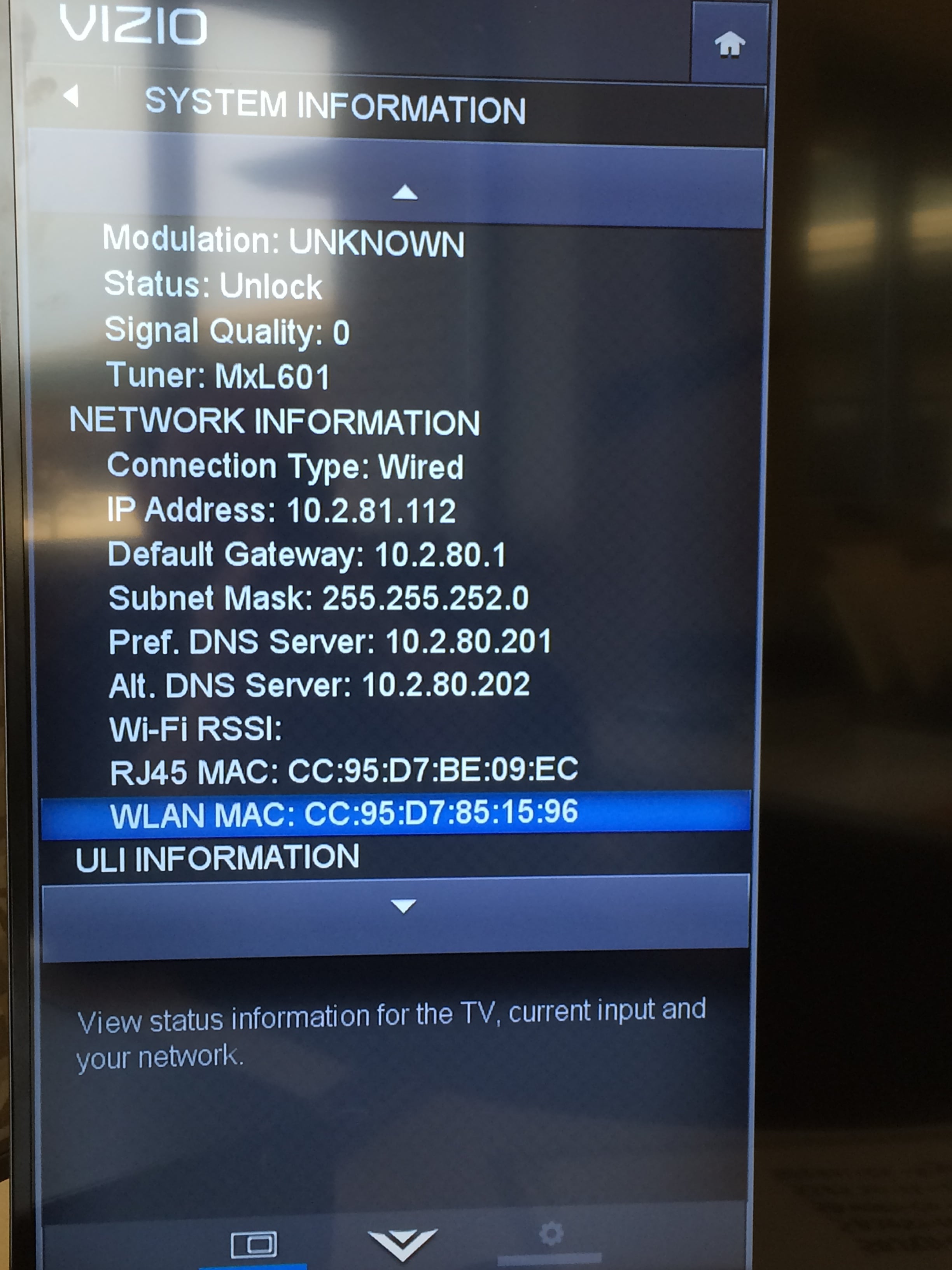
Check the RJ45 Mac address of the TV. This can be found in the system information of the TV menu and then scrolling down. Did you know you can access the system info by turning the TV off and then press and hold the Power button until the TV is fully powered on?
Is the RJ45 Mac all 0's or all F's? |
|
RJ45 Mac is all 0's or all F's |
|
RJ45 Mac is NOT all 0's or all F's |
|
Are other devices such as a computer able to connect and utilize the network? Have the customer test this by opening a browser and going to a website. |
|
Customer tested a 2nd device and the web page loaded successfully. |
|
Customer tested a 2nd device and the web page did not load. |
|
Customer does not have another device to test network or is unwilling to test a second device. |

|
This step is used to see if the customer is having a problem with their internet or if the TV is having a problem. |
|
Are other devices such as a computer able to connect and utilize the network? Have the customer test this by opening a browser and going to a website or testing a 2nd Ethernet Cable |
|
Customer tested a 2nd device and the web page loaded successfully. |
|
Customer tested a 2nd device and the web page did not load. |
|
Customer does not have another device to test network or is unwilling to test a second device. |
|
This step is used to see if the customer is having a problem with their internet or if the TV is having a problem. |
|
If the RJ45 Mac is all 0's or all F's verify warranty and set up a repair. If repair is not available setup a replacement following 4108
|
|
Setup a Replacement as a Failed Repair
|
|
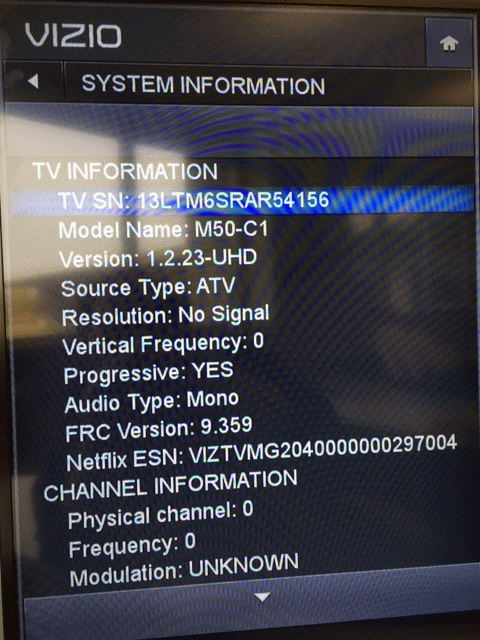
What is the internal serial number of the TV (found in the system information).
|
|
Click the finish button and copy and paste your notes into theCase. Once this is completed contact the L3 on a transfer line to WARM transfer the call.
In order for the call to be taken over by L3 you need to make sure you have done all steps in the troubleshooter AND copy and pasted your notes into the case. |
|
Explain to the customer that as more than one device is connected to the network and they are unable to access the internet on them, this is an issue with their internet service. At this time we recommend contacting your internet service provider (ISP) or Router Manufacturer for further assistance.
|
|
Have the customer go to the Network Settings in the TV Menu, select Manual Setup and press the OK button on the VIZIO remote. Is DHCP set to On or Off? If DHCP is set to Off, have the customer turn DHCP On. |
|
DHCP is set to On. |
|
DHCP was set to Off. Had the customer turn DHCP On. |
|
Have the customer go to the Network Settings in the TV Menu, select Manual Setup and press the OK button on the VIZIO remote. Is DHCP set to On or Off? If DHCP is set to Off, have the customer turn DHCP On. |
|
DHCP is set to On. |
|
DHCP was set to Off. Had the customer turn DHCP On. |
|
Test an application.
|
|
Had the customer test an application, issue resolved. |
|
Applications are not working. |
|
Let the customer know their TV is now working properly, provide the case number, and end the call as normal. Click the Finish button and Copy and Paste the page into your case notes. |
|
Perform a Clear Memory or Clean Storage (if available). This will reset the TV back to factory defaults. Once this is completed walk the customer through the first time setup. Did this resolve the issue? |
|
Factory reset, TV now connected, but customer is now expereiencing Poor performace, Download Not Available, Buffering wtih a high Download speed, slower download than expected, or apps are not running smoothly |
|
Factory reset, customer is still unable to connect to network. |
|
Factory Reset, TV is now working properly. |
|
Perform a Clear Memory or Clean Storage (if available). This will reset the TV back to factory defaults. Once this is completed walk the customer through the first time setup. Did this resolve the issue? |
|
Factory reset, customer still experiencing poor performance. |
|
Factory reset, customer is unable to connect to network. |
|
Factory Reset, TV is now working properly. |
|
Is the customer in Warranty? Warranty is 13 months from DOM or 12 months from SO Date/Date of Purchase on receipt. |
|
Customer within Warranty Timeframe |
|
Customer no longer in warranty. |
|
Setup a repair or replacement following standard procedures. Click the Finish button and copy paste the page into your case notes and SRQ notes. |
|
Have the customer test another device on the same ethernet cable as the one plugged into the TV. This step will let us know if the Cable is working or if it is a bad cable. |
|
Tested ethernet cable in another device, unable to connect to ethernet. |
|
Tested ethernet cable in another device, device was connected. |
|
customer refuses to test another device on the same ethernet cable or doesn't have a 2nd device to test on the same ethernet cable. |
|
As the customer has tested the cable in two devices and neither worked the issue is more than likely the cable. Let the customer know that they will need to try another ethernet cable. If they do not have one they will need to purchase one or connect to a wireless network. If another cable does not resolve the issue refer the customer to their ISP and/or router manufacturer for further assistance.
|